

QR code ticketing: report an issue right at the device
You print a QR label for every device and room, as a PDF sheet for A4 labels. Anyone with a problem points their phone camera at the label, signs in, and the portal opens with the room or device already filled in. For devices, this works for their own and for any not assigned to anyone. Nobody has to look up or type an asset tag.
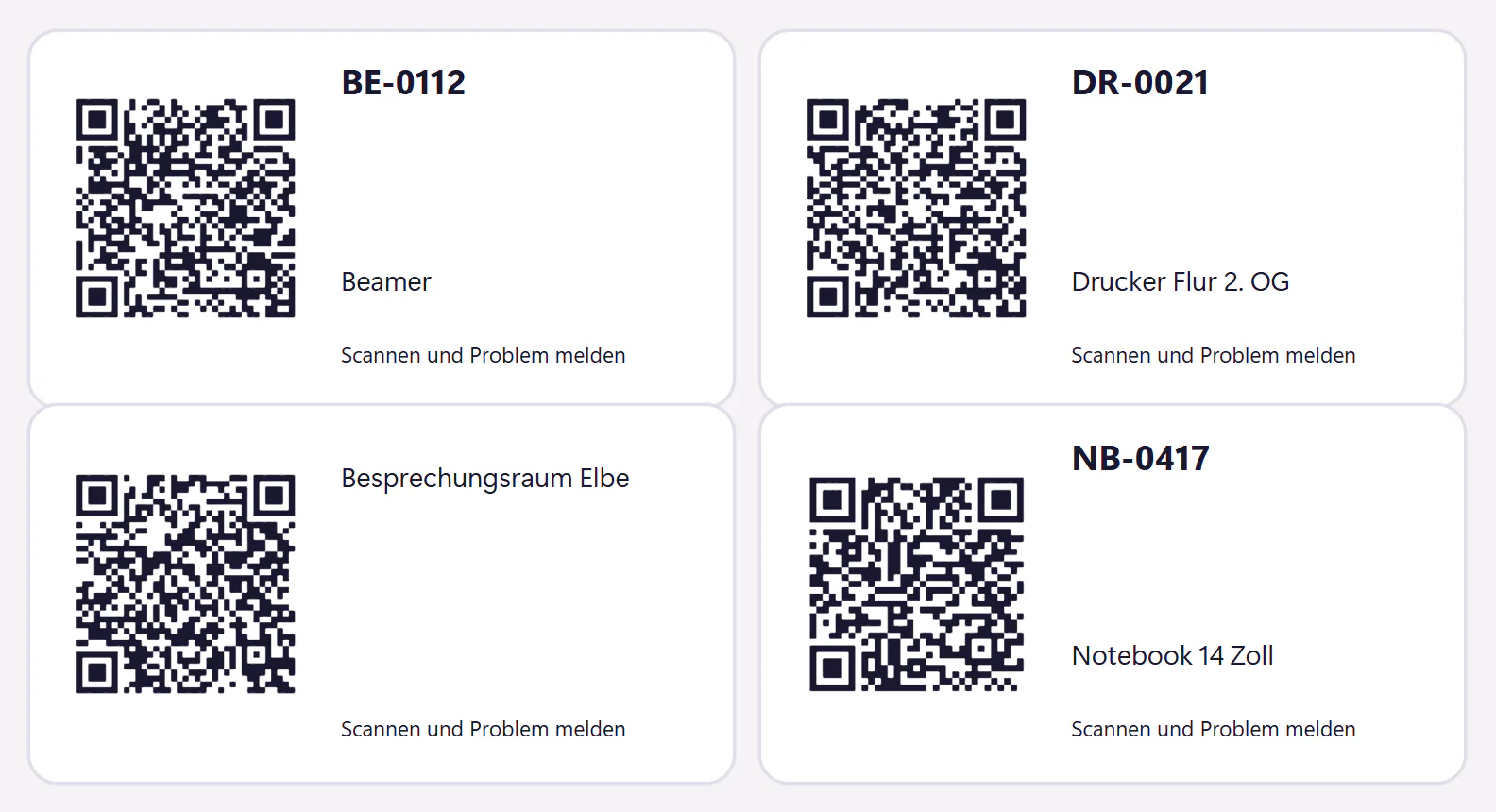
How QR labels get onto devices and rooms
Add devices and rooms
Devices are in the inventory, with your pattern for asset tags such as NB-0417. You add rooms by name, for example "Elbe meeting room".
Generate a PDF sheet
You choose devices or rooms, and a PDF sheet is generated. Each label shows a QR code and a description. Device labels also show the asset tag.
Print and attach
Use an ordinary office printer and label paper at 100% print size. Attach labels where people will see them: next to the display on printers, on the remote control or the table for projectors.
Scan and report
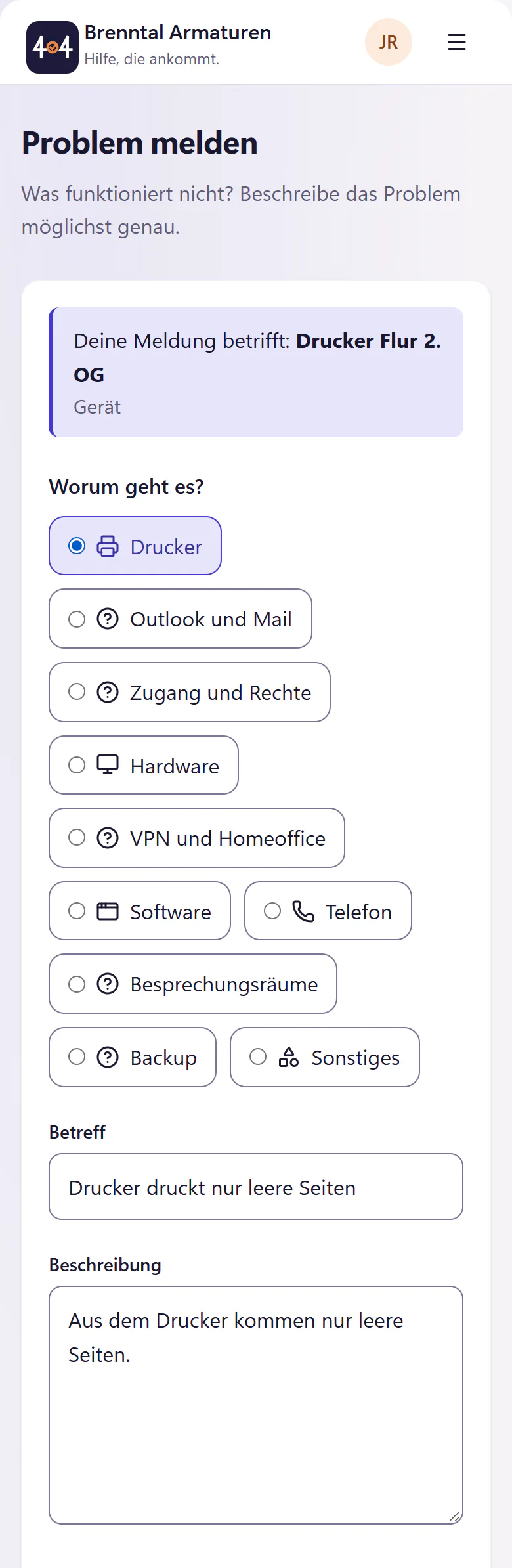
Point the phone camera at the label, tap the link and sign in. The portal shows which room or device the report is about. A device assigned to someone else is not picked up. The person only has to write what is wrong.
IT sees the device in the ticket
In the IT console the device appears on the ticket with its asset tag, and the inventory lists its earlier tickets. The first follow-up question, "Which printer?", disappears.
What a QR code contains and what it does not
- Contents
- A link to your portal with a random identifier for the device or room. No names, no passwords.
- Scanning
- With the camera app of any current phone. No separate app is needed.
- Sign-in
- Anyone who is not signed in yet signs in to the portal first and then lands on the report for the scanned device.
- Printing
- A4 PDF sheets with 3 × 8 labels, printed on your own printer. A test page with a measurement line shows beforehand whether the print size is right. When reprinting on a partly used sheet, you choose the first free position.
- Renewal
- If a label is lost or should no longer be valid, you renew the QR token. The old label is invalid immediately.
- Not included
- No NFC, no printing service, no location tracking for devices.
Where QR labels help most
On anything many people use and nobody owns: printers, projectors, meeting rooms, warehouse terminals, the computer at reception. That is exactly where nobody knows the asset tag, and where nobody reports a fault because everyone assumes someone else already has. The incident banner in the portal helps against duplicate reports.
A one-person IT team saves the follow-up question about the device. The guide Asset tag numbering shows how to assign asset tags that fit on a label.
Frequently asked questions
Do QR labels cost extra?
No. They are included in the core plan. You only pay for label paper and toner.
What happens when we replace a device?
The new device gets its own label with its own asset tag. Room labels stay, because they point to the room, not to a device. To invalidate an old label, renew its QR token.
Can an outsider create tickets through a label?
No. The label leads to your company portal, and people sign in there. Without an account at your company, no ticket is created.
Related features
- Asset managementTrack devices, asset tags and employee assignments. Import CSV or Excel and print equipment handover forms with signature fields.
- Incidents and maintenancePublish portal incident banners employees can join with one click. Detect related tickets and announce maintenance with email updates and reminders.
- Employee portalReport IT issues, track progress and find help articles on a phone or desktop. No installation. Email reporters can use a personal link without an account.