

Screen recording for IT support, without installing software
With "Bildschirm aufnehmen" (record screen), employees show IT what is happening in the portal, or they take a screenshot, right in the browser and without installing anything. A tick box sends browser, operating system, image size and recording time along. IT sees the error message instead of a retelling from memory.
How someone sends a screen recording to IT
Tap "Bildschirm aufnehmen" (record screen)
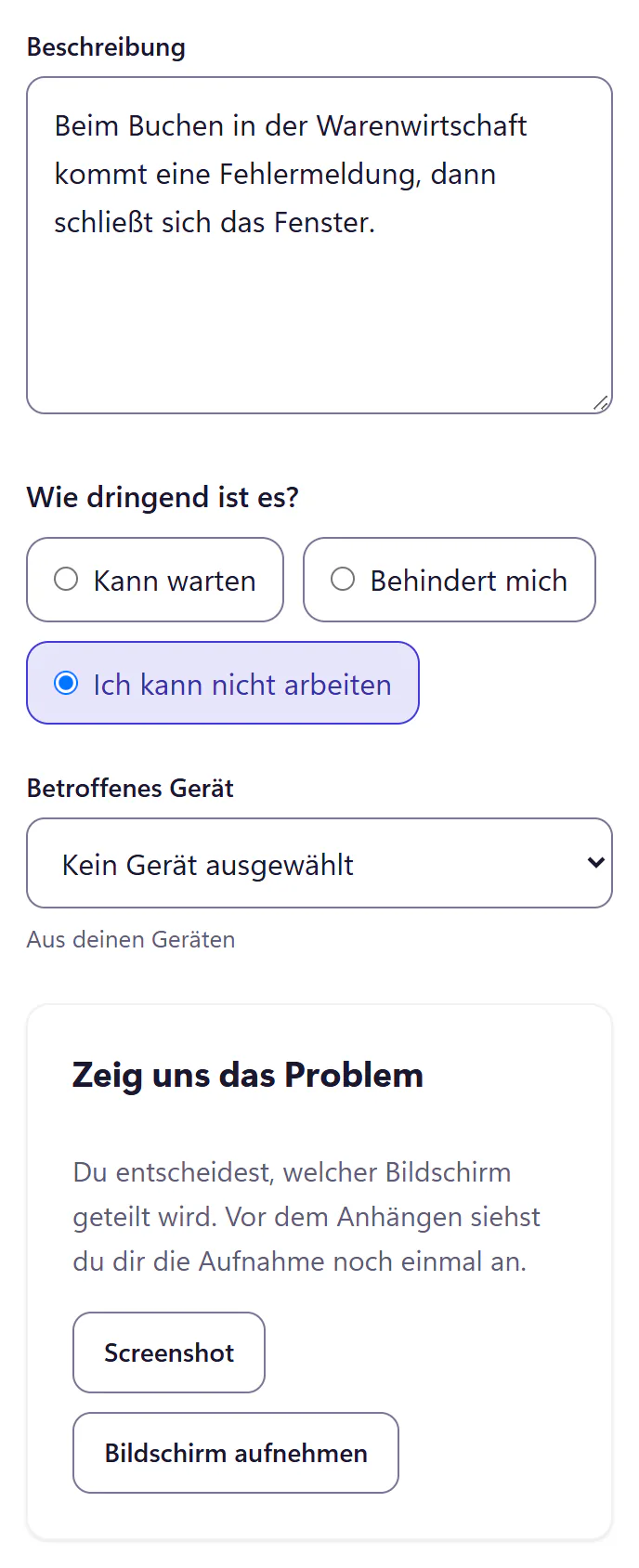
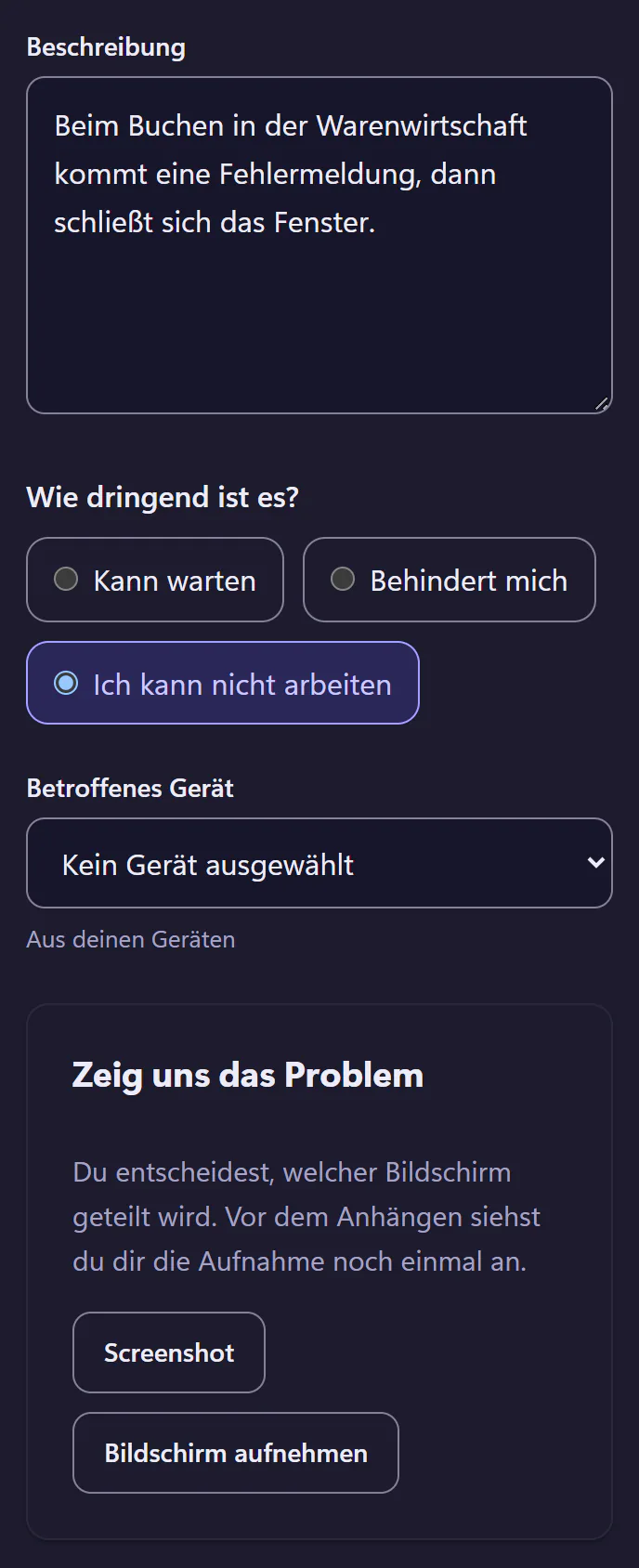
In the "Problem melden" (report an issue) form, under "Zeig uns das Problem" (show us the problem), there are three ways: record the screen, take a screenshot or choose a file.
Choose a window or screen
The browser asks what to share: a window, a tab or the whole screen. Nothing is recorded without this permission.
Reproduce the error
The person clicks through to the error message and stops the recording. It lasts 30 seconds at most and has no sound. Before attaching it, they review the result and record again if needed.
Submit
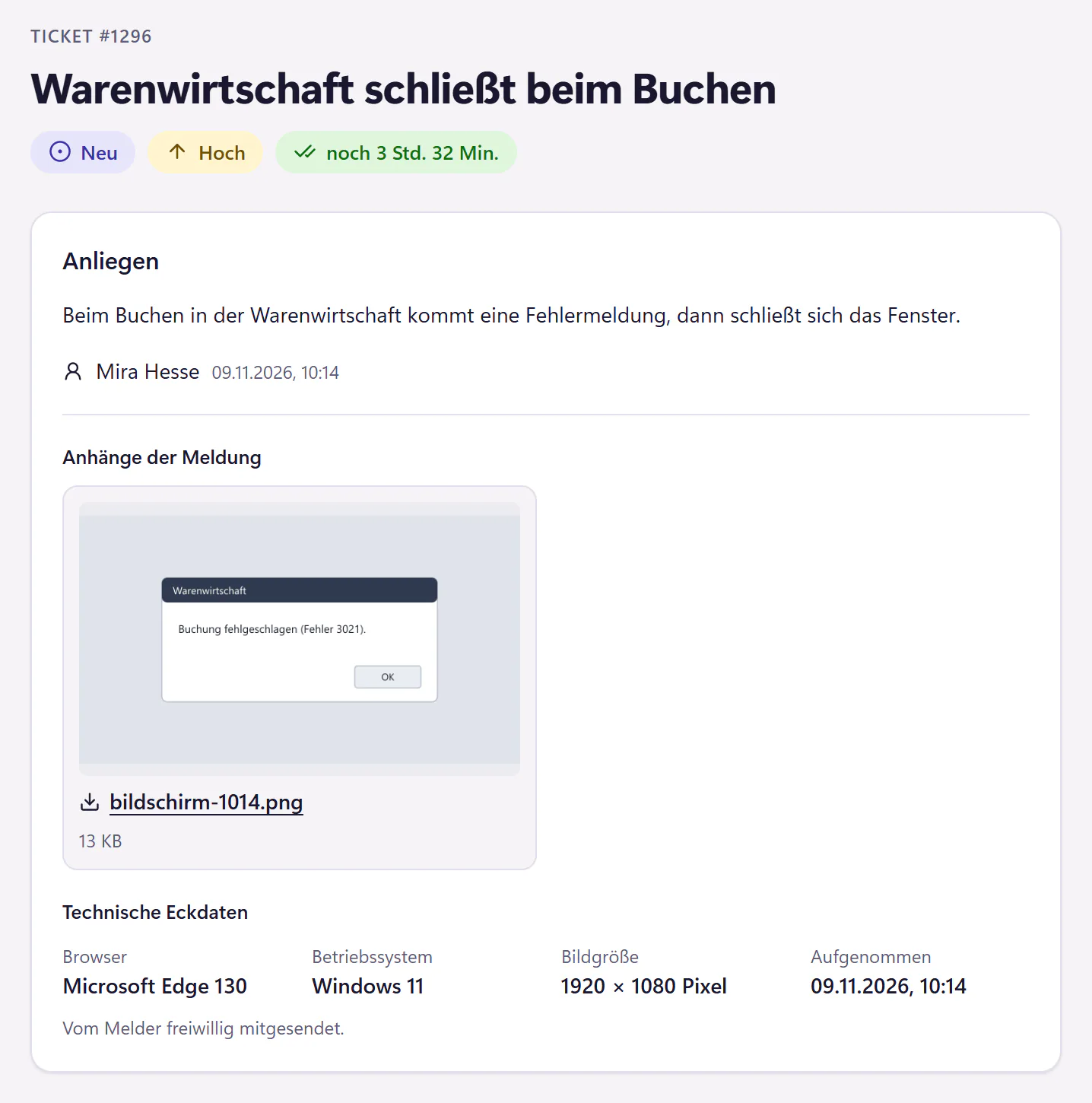
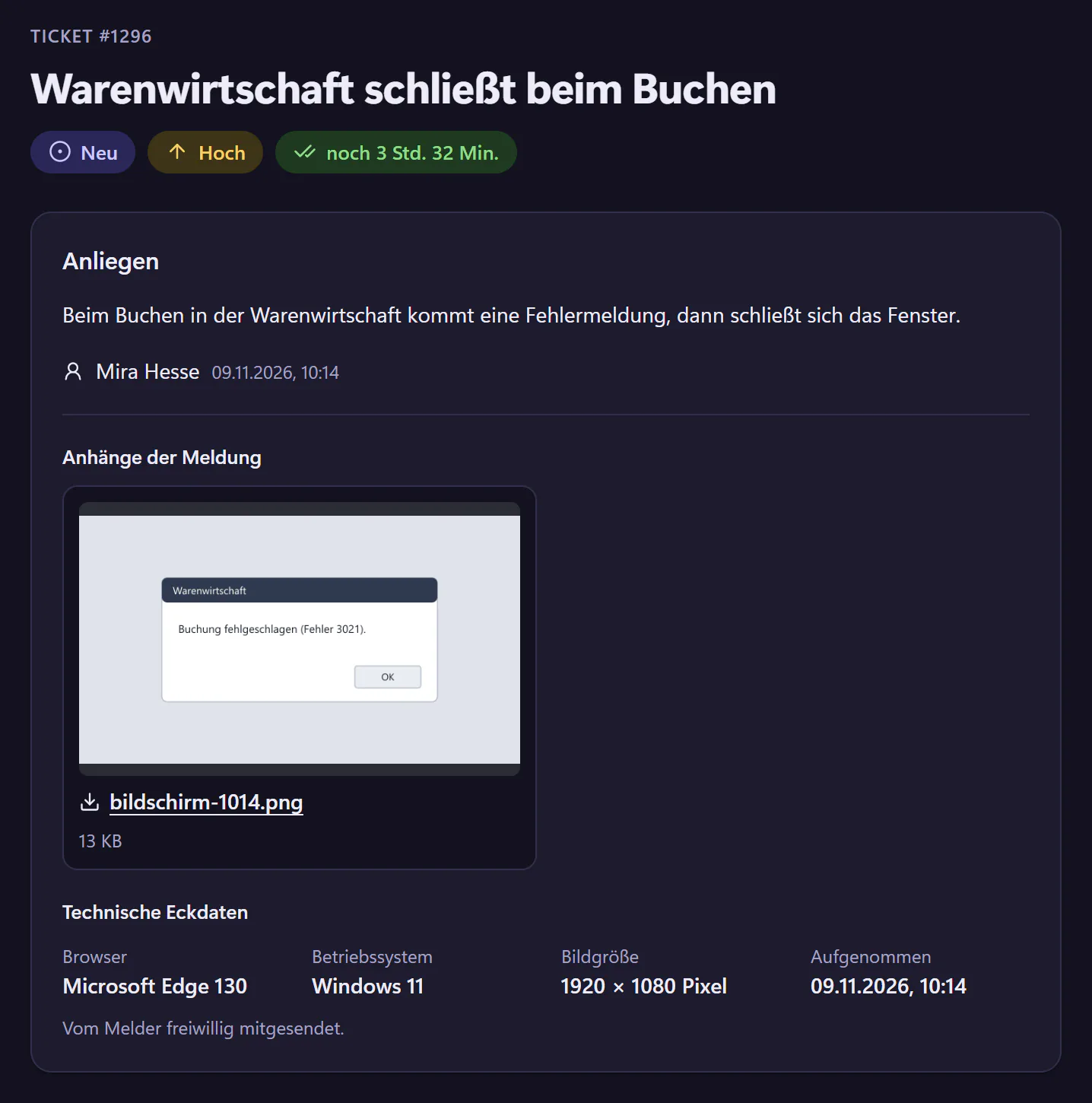
Ticking "Technische Eckdaten mitsenden" (send technical details) includes browser, operating system, image size and recording time. In the IT console, the recording and the technical details appear directly on the ticket.
What recording can and cannot do
- No installation
- Recording runs through the browser. No software, no extension, no admin rights.
- Technical details
- Browser, operating system, image size and recording time, voluntary and only with the tick. For an error that appears only at a certain time, the time is often half the answer.
- Short and silent
- A recording lasts 30 seconds at most and has no sound. That is enough for a click path to the error message.
- On a phone
- Many mobile browsers do not allow screen recording. There, people choose a photo or a file instead.
- No remote access
- IT sees only the finished recording. It cannot control the computer with it and cannot watch live.
- Storage
- The recording is an attachment on the ticket and is deleted with the ticket, like any other attachment.
Who screen recording helps most
Everyone who does not copy error messages word for word, which is almost everyone. It saves the most for errors in business applications such as stock management or time tracking that only occur after a particular click path. Instead of "Doesn’t work, some kind of error", the ticket contains a 24-second recording.
For problems with printers or projectors, that is, outside the screen, the QR label on the device is the better route.
Frequently asked questions
Do I need to install anything on the computers?
No. Recording uses the browser’s screen sharing. It needs neither software nor an extension.
Can IT see what else is happening on my screen?
Only what the person chooses to record: the window, tab or whole screen they select in the browser. They can watch the recording before attaching it. IT cannot watch live.
Is screen recording included in the price?
Yes, it is part of the core plan. Only activated accounts are billed, from €29 per month.
Related features
- Employee portalReport IT issues, track progress and find help articles on a phone or desktop. No installation. Email reporters can use a personal link without an account.
- IT consoleA compact IT ticket console with filters, saved views, bulk actions, keyboard shortcuts, internal notes, mentions and snippets.
- Privacy and hostingCompany data export, workspace deletion, configurable ticket retention and a data processing agreement. Review hosting and privacy controls before a trial.